Guides
Logins and certificates
Two kinds of broker take logins, with the same rules: the development broker in bench mode (Put a real bot on the
bench), and a broker of your own whose certificates come from Vault. Neither takes a
password. Every client shows a certificate, the name on it is its login, and each login may use only its own topics.
Bench mode’s certificates come from a CA on this machine, made the first time it’s needed. With VAULT_ADDR set, the
same scripts get them from Vault’s CA instead. This guide makes and changes the logins for both: drivers, the station
and the other services, and bots. Why it’s built this way, and what it doesn’t cover: Security.
The development broker on 127.0.0.1 (plain scripts/broker up, and bench mode’s own port on this machine) takes no
logins, and needs none of this.
Who logs in as what
| Who | Login | From Vault | Bench mode’s |
|---|---|---|---|
A driver (scripts/drive, the acceptance run) |
driver-1, driver-2, … |
scripts/login driver-1, with that driver’s Vault login: 12 hours |
scripts/login driver-1: 30 days |
| The station, the recorder, the position service | station, recorder, position |
scripts/login station, with an admin’s Vault login: a week |
the same: 30 days |
| A bot | bot-xxxxxx, from its MAC |
made from a request the bot prints, signed with scripts/bot-cert, with an admin’s Vault login: two years |
the same, with no Vault login |
scripts/login and scripts/bot-cert go to Vault when VAULT_ADDR is set, and to this machine’s CA when it isn’t.
What each login may publish and read is in How it’s secured
(broker/acl: bench mode runs it, and a broker of your own takes the same file).
One connection per login. A second program logged in with the same name takes over the first one’s connection, so two programs that run at once need two logins.
Vault logins
A person gets certificates from Vault through a Vault login of their own (userpass). What the scripts need from Vault:
- A PKI mount,
pki-gunkslab, whose CA signs every login’s certificate. Its key never leaves Vault. - A role per name on it:
scripts/login NAMEgets its certificate frompki-gunkslab/issue/NAME. Bots’ requests are signed by one role for them all,pki-gunkslab/sign/bot. - A policy per driver that lets its login get its own name’s certificate and no other.
- An admin policy,
gunkslab-admin, that also gets the services’ certificates, signs bots’, revokes any certificate, and keeps the bots’ passwords atsecret/gunkslab/(below). - A transit key,
transit-gunkslab/keys/firmware, that signs the bots’ updates (below).
Where these come from is up to your Vault’s configuration. Kept in code, a change to them is reviewed and applied like any other.
A driver’s password
-
It’s random, kept in Vault at
secret/gunkslab/<name>(KV). To readdriver-1’s, as a Vault admin (adminhere):export VAULT_ADDR=https://vault.example.internal # an example: your Vault's address export VAULT_TOKEN=$(vault login -no-store -method=userpass -field=token username=admin) # asks for its password # where ~/.vault is a folder rather than a token file, the vault CLI also needs: export VAULT_CONFIG_PATH=/dev/null vault kv get -field=password secret/gunkslab/driver-1 -
Its sign-in tokens last an hour, eight at most (set on the login, in Add a driver).
scripts/logingives its token back as soon as it has the certificate.
Change a password
As a Vault admin, a new random one, kept in Vault first and then set on the login, never shown:
openssl rand -base64 24 | tr -d '/+=\n' | vault kv put secret/gunkslab/driver-1 password=-
vault kv get -field=password secret/gunkslab/driver-1 | vault write auth/userpass/users/driver-1/password password=-
To choose one yourself, put it in Vault’s copy first: vault kv put secret/gunkslab/driver-1 password=-, type it,
then Ctrl-D (it shows as you type). Then run the second line above. A driver can’t change their own password: that
would take a policy that allows it.
Add a driver
-
Name it in Vault: a
pki-gunkslabroledriver-2that issues that name only, for 12 hours at most, and a driver’s policy that lets it usepki-gunkslab/issue/driver-2and nothing else, given to its login (on its entity, or withtoken_policieson the user in step 3). If your configuration makes the driver’s entity too, make it before the login is first used: a login used before its entity exists gets one made by Vault, which then clashes with yours. -
Let the broker know it: a
user driver-2block inbroker/acl, asdriver-1’s, with its own name in itsstation/driveline. That’s an MR here. Bench mode loads it on its nextscripts/broker up --lan; a broker of your own needs the same file. -
Make the login, as a Vault admin: its password, kept in Vault, and its tokens’ lifetimes.
openssl rand -base64 24 | tr -d '/+=\n' | vault kv put secret/gunkslab/driver-2 password=- vault kv get -field=password secret/gunkslab/driver-2 | vault write auth/userpass/users/driver-2 password=- token_ttl=1h token_max_ttl=8h -
Give the driver its password, Vault’s address, and this guide. They run
scripts/login driver-2.
For bench mode alone, step 2 is all: scripts/login driver-2 without VAULT_ADDR then works.
Take a driver away
- Take their role and policy out of Vault, and their block out of
broker/acl(an MR). vault delete auth/userpass/users/driver-2andvault kv delete secret/gunkslab/driver-2.scripts/certs revoke driver-2: their certificates last up to 12 hours.
Get a certificate
scripts/login driver-1
- With
VAULT_ADDRset, it asks for your Vault login and password (VAULT_USERsaves typing the login), and keeps the certificate in~/.gunkslab/certs/driver-1, readable by you only.MQTT_LOGIN=driver-1then makesscripts/driveand the rest use it, withMQTT_HOST=192.0.2.10. When it runs out, the scripts say so: runscripts/loginagain. - Without
VAULT_ADDR, it asks for nothing and writes~/.gunkslab/bench/certs/driver-1, from this machine’s CA. Programs on this machine don’t need it, since they use 127.0.0.1. It’s for one on another machine on the network: copy the folder to that machine’s~/.gunkslab/certs/driver-1, then useMQTT_HOSTset to this machine’s address andMQTT_LOGIN=driver-1there.
Run the programs with a login
On a broker that takes logins, from another machine, MQTT_HOST is the broker and MQTT_LOGIN the certificate to
log in with (the address is an example):
MQTT_HOST=192.0.2.10 MQTT_LOGIN=station scripts/station up
MQTT_HOST=192.0.2.10 MQTT_LOGIN=driver-1 scripts/drive
MQTT_HOST=192.0.2.10 MQTT_LOGIN=recorder scripts/record start
MQTT_HOST=192.0.2.10 MQTT_LOGIN=position scripts/position up --bot 10=bot-a4cf12
The driving tool drives as its login, driver-1: the station says so in its notices and in the fleet summary. The
station has to be on the same broker as the position service, to see the poses (the camera’s
guide).
A bot
Not yet done on a real bot: the code that makes the key and the request, and checks the certificate, has been run off the bot only, on the same mbedTLS as the ESP32’s (2.28), and its certificate logged in to the broker’s config.
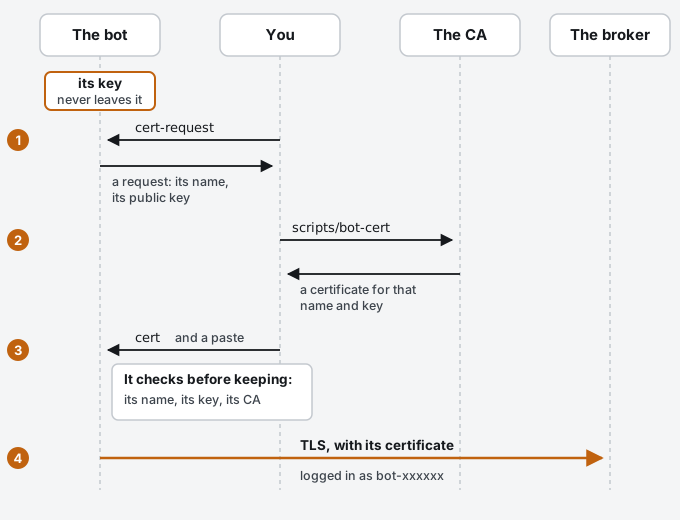
A bot’s login is its own name, bot- and the end of its MAC, printed on its first line over USB. It makes its own key,
which never leaves it, and asks for a certificate with a request it prints. The key and the certificate stay in its
flash, through power-offs and reflashes. For a broker on Vault’s CA, VAULT_ADDR is set and signing takes an
admin’s Vault login. For bench mode, it isn’t, and signing takes nothing.
-
Point it at the broker. In
firmware/include/bot_config.h:-
MQTT_HOSTandMQTT_PORT 8883: your broker’s address (192.0.2.10in these examples); for bench mode, the addressscripts/broker up --lanprinted. -
MQTT_CA, the CA it checks the broker by. This prints it in the formbot_config.hwants, Vault’s or this machine’s asVAULT_ADDRsays:scripts/bot-cert ca
Flash it (Flash a bot). It can’t connect yet:
[boot] I am bot-a1b2c3, fleet desk, gl-zero-0.4.0, reset: power_on [mqtt] login: TLS, but no certificate yet: cert-request -
-
Ask it for a request. In
pio device monitor, typecert-request. It makes its key (the first time) and prints a request between-----BEGIN CERTIFICATE REQUEST-----and-----END CERTIFICATE REQUEST-----. Save those lines, both included, asbot-a1b2c3.csr. -
Sign it:
scripts/bot-cert bot-a1b2c3.csrIt checks the request is for a bot’s name (
bot-and six hex digits), signs it, prints the certificate, and keeps it inbot-a1b2c3.crt. -
Give it to the bot. In the monitor, type
cert, then paste the certificate,-----BEGIN CERTIFICATE-----to-----END CERTIFICATE-----. The bot checks it’s its own, for its key and from the CA inMQTT_CA, keeps it, and connects:[tls] certificate kept, until 2028-10-29; logging in as bot-a1b2c3 [mqtt] up as bot-a1b2c3, waiting for its marker before taking commands [mqtt] marker back: e-stops in [mqtt] taking commands on gunkslab/v0/desk/bot-a1b2c3/cmdcert-clearforgets both the certificate and the key;cert-requeststarts again.
A bot moving between a broker on Vault’s CA and bench mode needs MQTT_CA, a reflash and a new certificate for each:
the two CAs don’t trust each other’s.
Updates over the air
A bot takes an update over the air only with two things kept in its flash, through power-offs and reflashes, both typed in over USB:
- its own password, so one bot in hand gives up its own and no other’s. It’s kept in Vault at
secret/gunkslab/ota/<bot>(withVAULT_ADDRset; your Vault login needsgunkslab-admin), or for bench mode on this machine, in~/.gunkslab/bench/ota; - the public key its updates are signed with (gl-zero-0.12.0 and pirate-stage-0.7.0 on). The bot checks each new
image’s signature before it restarts into it, and wipes one that isn’t signed with that key. With
VAULT_ADDRset the key is Vault’s own,transit-gunkslab/keys/firmware, which signs but can’t be read out; for bench mode it’s~/.gunkslab/bench/fw-signing.pem, readable by you only.
Until a bot has both, it takes updates over USB only. Neither has been tried on a real board yet.
-
Make its password:
scripts/bot-ota new bot-a1b2c3It makes a long random password, keeps it, and prints the line to type into the bot. It won’t make a second one for a bot that has one:
scripts/bot-ota replace bot-a1b2c3does that, and Vault keeps the old one as the version before. -
Give it to the bot. In
pio device monitor, type the line it printed,ota-passwordand the password:[ota] password keptota-passwordalone says whether it has one, never the password;ota-password clearforgets it, and the bot takes updates over USB only. -
Give it the signing key, once for every bot. For bench mode, make the key first, once:
scripts/fw-sign key new     # bench mode only; it won't make a second
scripts/fw-sign key         # prints the line again, any time
Type the line it prints,
ota-keyand 130 hex digits, into the monitor:[ota] key kept: updates must be signed with it [ota] on, with this bot's own password and signed images onlyota-keyalone prints the key’s first digits, to check againstscripts/fw-sign key;ota-key clearforgets it, and the bot takes updates over USB only. -
Update it over the air, from
firmware/'s PlatformIO on this machine (it needs python3 and openssl too), with the bot’s address from the serial monitor or the router:scripts/bot-ota upload bot-a1b2c3 192.168.1.50 # gl_zero scripts/bot-ota upload bot-a1b2c3 192.168.1.50 pirate-stage-ota # Pirate StageIt builds the firmware, signs it, fetches the bot’s password and sends it. The upload says it went even when the bot refuses the image: the bot says which over USB (
[ota] signed by this bot's key: restarting into it, or[ota] update refusedand why), and itshello’sfwis the version it’s running. Nothing limits wrong passwords: the password is long and random for that.scripts/fw-sign check firmware/.pio/build/gl-zero-ota/firmware.signed.binchecks a signed image here, against the keyscripts/fw-sign keyprints.
A lost bot’s password opens only that bot: revoke its certificate, and there’s nothing else to change. The signing key is the fleet’s: a bot in hand gives up the public half only, which signs nothing.
A bot’s Wi-Fi
On the bots’ own network, each bot has its own Wi-Fi password, and the network gives
each device a password of its own (UniFi’s private pre-shared keys). One bot in hand then gives up its own and no
other’s, and a lost one is taken off the network by removing its key. The network’s name is WIFI_SSID in
bot_config.h; the password is kept in the bot’s flash, through power-offs and reflashes, and in Vault at
secret/gunkslab/wifi/<bot> (with VAULT_ADDR set; your Vault login needs gunkslab-admin). For bench mode, on this
machine instead, in ~/.gunkslab/bench/wifi. Until a bot has one, it doesn’t join.
-
Make it:
scripts/bot-wifi new bot-a1b2c3It makes a long random password, keeps it, and prints it twice: alone, for the network, and as the line to type into the bot.
scripts/bot-wifi show bot-a1b2c3prints it again. -
Add it to the network as a private pre-shared key named
bot-a1b2c3, on the bots’ network’s VLAN. -
Give it to the bot. In
pio device monitor, type the line it printed,wifi-passwordand the password:[wifi] password kept: joining [wifi] joining your-ssid [wifi] 192.168.1.xx rssi -5xgl_zero waits for Wi-Fi at boot, reading what’s typed meanwhile, so a missing or mistyped password is put right here, not with a reflash.
wifi-passwordalone says whether it has one, never the password;wifi-password clearforgets it, and the bot leaves the network.
A new password for a bot: scripts/bot-wifi replace bot-a1b2c3, add it to the network, give it to the bot, then
remove its old key there. A lost bot: remove its key from the network, and revoke its
certificate.
On the bench, on your own Wi-Fi (one password for everything), type that password into the bot the same way,
wifi-password and the password. It’s kept only in the bot.
Revoke a certificate
A lost bot, or a driver who no longer drives:
scripts/certs revoke driver-2
It revokes every certificate the name still holds, then restarts the broker with the new revocation list, so nothing using one stays connected. Every client drops for a moment, and the bots and the station come back by themselves. Tried on 2026-10-25: the revoked client dropped about nine seconds in, and was refused from then on.
- With
VAULT_ADDRset, it takes an admin’s Vault login, andkubectlfor the Kubernetes cluster the broker runs on: it has the broker’s new list fetched, then restarts itsbrokerdeployment in thegunkslabnamespace. - In bench mode (
VAULT_ADDRunset), it takes neither.
By hand, with Vault, as an admin: vault write pki-gunkslab/revoke serial_number=<serial>, then
vault read pki-gunkslab/crl/rotate. The broker then needs the new list, and a client already connected stays on
until it next connects.
See what’s out there
scripts/certs list
Every certificate that still works, Vault’s or this machine’s as VAULT_ADDR says: its name, serial, when it
runs out and the days left. A bot’s or the broker’s running out within 60 days is marked renew it, and the exit
status is 1, so it can be checked from a script. A bot’s certificate lasts two years, and the bot can’t renew its own:
a new one is a new request over USB.
Where everything is
| What | Where |
|---|---|
| Vault’s CA, its roles and policies | Vault: pki-gunkslab, a role per name, gunkslab-* policies; set up by your Vault’s configuration |
| The drivers’ Vault logins and passwords | Vault: auth/userpass/users/<name>, the passwords also at secret/gunkslab/<name> |
| Who may publish what | broker/acl, for both brokers |
| Your certificates from Vault | ~/.gunkslab/certs/<name> (GUNKSLAB_CERTS) |
| This machine’s CA, its key among it | ~/.gunkslab/bench/ca (GUNKSLAB_BENCH), readable by you only |
| The certificates it issued | ~/.gunkslab/bench/certs/<name> |
| A bot’s key and certificate | in its flash |
| A bot’s password for updates over the air | in its flash, and Vault’s secret/gunkslab/ota/<bot>; for bench mode, ~/.gunkslab/bench/ota/<bot> |
| A bot’s Wi-Fi password | in its flash, and Vault’s secret/gunkslab/wifi/<bot> (and the bots’ network); for bench mode, ~/.gunkslab/bench/wifi/<bot> |
Starting bench mode afresh: delete ~/.gunkslab/bench. The next scripts/broker up --lan makes a new CA, and
every bot then needs the new MQTT_CA and a new certificate.