Guides
Put a real bot on the bench
Everything so far has run on simulated bots, inside containers on this machine. This guide gets a real gl_zero talking to the same broker, so the page shows it and drives it the way it does the simulated ones: its power, its Wi-Fi, its distance sensor, its events.
Before this: the tutorials through 10. The distance sensor, and a gl_zero that’s wired, with its ESP32 on a USB cable.
gl_zero is still being designed, and it hasn’t been built. There’s no build guide yet.
Not run on a bot yet. Steps 1 and 2 are real, with real output. Steps 3 to 5 are written from the firmware, ahead of the first flash: their output gets filled in from a real bot then. If anything there doesn’t match what you see, what you see wins.
1. Let the bot reach the broker
scripts/broker up only listens on 127.0.0.1: this machine, and nothing else. A bot on the Wi-Fi can’t reach that.
Bench mode listens on this machine’s network address as well, with logins there:
scripts/broker down
scripts/broker up --lan
broker: up on 127.0.0.1:1883, WebSockets on 127.0.0.1:9001, and BENCH MODE on 192.168.1.20:8883 (container, docker.io/library/eclipse-mosquitto:2.1.2-alpine)
broker: from the network, TLS and a certificate only. For a bot, in bot_config.h:
  MQTT_HOST "192.168.1.20", MQTT_PORT 8883, and MQTT_CA from scripts/bot-cert ca, VAULT_ADDR unset (docs/guides/logins.md)
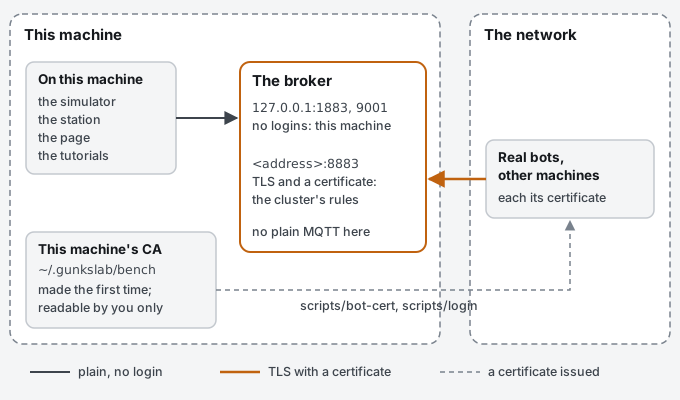
- The address is yours, not this one. It’s the one your machine has on the Wi-Fi. If the one it finds is wrong
(a VPN, say), give it:
scripts/broker up --lan 192.168.1.20. - This machine is as before. The simulator, the station, the page and the tutorials’ commands use 127.0.0.1, with no logins: anything on this machine is trusted as much as the machine is.
- The network gets TLS and certificates only, on 8883: each client logs in with a certificate from this machine’s
own CA, made the first time (in
~/.gunkslab/bench, readable by you only), and is held to its own topics and its own client ID (Who may do what). Nothing on the network can publish without one, and nothing can pose as the broker to a bot.
2. Check it from outside
From this machine, but through the network address rather than 127.0.0.1. The first answers, the second doesn’t: plain MQTT isn’t on the network at all. If 8883 is refused or times out, the broker isn’t in bench mode, the address is wrong, or a firewall is in the way.
macOS
nc -z -G 3 192.168.1.20 8883
nc -z -G 3 192.168.1.20 1883
Connection to 192.168.1.20 port 8883 [tcp/*] succeeded!
On the first run, macOS may ask whether to allow incoming connections: allow them, or the bot can’t get in.
Ubuntu / Debian
nc -z -w 3 192.168.1.20 8883 && echo open
nc -z -w 3 192.168.1.20 1883 && echo open
The first prints open, the second nothing. Ubuntu’s firewall, ufw, is off unless you turned it on. If it’s on, let
the bots in:
sudo ufw allow 8883/tcp
RHEL / Fedora
nc is in nmap-ncat (sudo dnf install nmap-ncat):
nc -z -w 3 192.168.1.20 8883 && echo open
nc -z -w 3 192.168.1.20 1883 && echo open
The first prints open, the second nothing. If firewalld is running (sudo firewall-cmd --state says running),
let the bots in:
sudo firewall-cmd --permanent --add-port=8883/tcp
sudo firewall-cmd --reload
Windows
Bench mode hasn’t been tried on Windows yet. Under WSL2, the address scripts/broker up --lan finds may be WSL’s
own, which starts 172., not the one your Wi-Fi gives Windows. If so, give it Windows’ address, which ipconfig in
PowerShell shows:
scripts/broker up --lan 192.168.1.20
Check it from the Ubuntu shell:
nc -z -w 3 192.168.1.20 8883 && echo open
nc -z -w 3 192.168.1.20 1883 && echo open
The first prints open, the second nothing. If Windows’ firewall asks about Docker Desktop, allow it on private
networks.
Start the rest as usual:
scripts/station up --desk 1.2x0.8
scripts/viewer up
3. Tell the bot where the broker is
In firmware/:
cp include/bot_config.example.h include/bot_config.h
Fill in include/bot_config.h:
| Setting | What |
|---|---|
WIFI_SSID |
Your Wi-Fi’s name. 2.4 GHz: the ESP32 doesn’t do 5 GHz. Its password isn’t here: you type it into the bot over USB once it’s flashed |
MQTT_HOST |
The address step 1 printed |
MQTT_PORT |
8883 |
MQTT_CA |
This machine’s CA: scripts/bot-cert ca prints it, to paste over the placeholder (with VAULT_ADDR unset. With it set, it prints the cluster’s) |
FLEET_ID |
desk, so it joins the simulated bots on the same page |
bot_config.h is gitignored: your passwords never get committed.
4. Flash it
Flashing needs PlatformIO on this machine (a container can’t reach the USB port). Install it as
Install says for your OS. The
flashing guide has the rest of the setup. Battery out, USB in, then from firmware/:
pio run -e gl-zero -t upload
pio device monitor
The serial monitor should show, from main.cpp:
[boot] I am bot-xxxxxx, fleet desk, gl-zero-0.4.0, reset: power_on
[mqtt] login: TLS, but no certificate yet: cert-request
[tof] up, five regions; an empty desk should read 0.141 m in bottom
[wifi] no password yet: type wifi-password and this bot's own over USB (scripts/bot-wifi new)
Type wifi-password and your Wi-Fi’s password (A bot’s Wi-Fi: on the bots’ own network,
each bot has its own). It keeps it, and joins:
[wifi] password kept: joining
[wifi] joining your-ssid
[wifi] 192.168.1.xx  rssi -5x
[ota] off: no password and no key yet (ota-password, ota-key over USB), so USB only
[mqtt] no certificate yet: type cert-request over USB (docs/guides/logins.md)
Give it its certificate, once: Logins and certificates has the steps (cert-request in the
monitor, scripts/bot-cert here, cert and a paste back). It keeps it through power-offs and reflashes, and connects:
[tls] certificate kept, until 2028-10-29; logging in as bot-xxxxxx
[mqtt] connecting to 192.168.1.20:8883 ...
[mqtt] up as bot-xxxxxx, waiting for its marker before taking commands
[mqtt] marker back: e-stops in
[mqtt] taking commands on gunkslab/v0/desk/bot-xxxxxx/cmd
bot-xxxxxxis this bot’s name, from its MAC address. Every bot gets its own, from the same firmware.[tof] no answer at 0x29instead means the sensor isn’t wired, or isn’t answering. The bot runs anyway, without the reflex, and its card says it has no sensors.[mqtt] TLS failed: it can’t reach the broker, or won’t take it. Check step 2, thatMQTT_HOSTis the address step 1 printed, and thatMQTT_CAis the onescripts/bot-cert caprints now (a new CA, from a deleted~/.gunkslab/bench, means new certificates all round).
5. See it, and drive it
Open the page (http://127.0.0.1:8080). The bot has a card like the simulated ones: online, its power, Wi-Fi,
distance (put a hand in front of the sensor and watch it drop), and its events, boot first, with why it started.
- It isn’t on the desk map. The map draws bots from their position, and a real bot doesn’t know where it is: that’s the overhead camera (Set up the overhead camera). Without one, clicking the desk to send it somewhere says there’s no position for it.
- Driving by hand works. Pick it on its card and use the keys, the on-screen pad or a gamepad, as in 06. Lift it off the desk the first time, wheels in the air.
- The reflex is live. Drive it at your hand: it stops, and the log says
obstacle_stop. - The e-stop stops it like any other bot, and so does closing the page (the station’s dead-man).
- It stops on its own when the commands stop. Wheels in the air, drive it forward, and while they turn run
scripts/station crashin another terminal. The wheels stop within half a second, andscripts/broker subshows itstimeout_stopevent: the bot’s own timeout, with nothing left running to stop it (How long a command lives).scripts/station upbrings the station back. - The serial monitor still has more. Refused messages, and the sensor coming up, only go there.
Check which way the sensor looks
The firmware reads the sensor as five regions, aimed by picking cells on the chip. Which cells look which way, once the light has come through the lens and the board is mounted head down in the pod, is worked out from ST’s manual, not tried. This checks it, once, for the pod’s design. Every gl_zero after has the same answer.
Set the bot on the desk, facing along it with at least 40 cm clear in front, and watch its telemetry:
scripts/broker sub -t 'gunkslab/v0/desk/bot-xxxxxx/telemetry' -v
- Nothing in front.
rangesshould read about 0.14 inbottom, about 0.25 inmiddle,leftandright(the desk further out), andnullor something long intop. Ifbottomandtopare the other way round, the rows are flipped. - A book standing 15 cm in front, off to the left, its right-hand edge 2 cm left of the bot’s middle line.
leftshould read it, about 0.15, andrightshould still read the desk. Ifrightreads it instead, the columns are flipped. - Each reading in its own region. With the book still there, every reading of
leftshould say about 0.15, not only some of them. If they’re mixed with the empty desk’s readings, a reading is coming from the wrong region.
Flipped rows or columns: set TOF_FLIP_ROWS or TOF_FLIP_COLS to 1 at the top of firmware/src/gl-zero/main.cpp, flash it,
and check again. Mixed readings in step 3 are a firmware fix, not a setting: open an issue with the telemetry lines.
If bottom reads well off 0.14 on an empty desk, its aim (TOF_DOWN_DEG) is the number to fix, in main.cpp and in
the simulator (sim/gunksim/types.py).
6. Tidy up
scripts/broker down
Next time, plain scripts/broker up when you’re only working with simulated bots. The CA and the bot’s certificate
stay: scripts/broker up --lan again, and the bot connects by itself.