Tutorial 06 · 20 min
The driving page
The page you’ve been watching the bots on can drive them too. It asks the station, exactly as the driving tool does, so everything from tutorial 05 still holds: one driver per bot, the station’s dead-man, the fleet’s power cap.
Do 05. The station first. Use one terminal window and a browser. A gamepad is optional.
1. Start everything
scripts/broker up
scripts/sim up 2
scripts/station up
scripts/viewer up
Open http://127.0.0.1:8080/. The header says gunkslab station, connected and station online. On the right, above the bot cards, is the Drive panel:
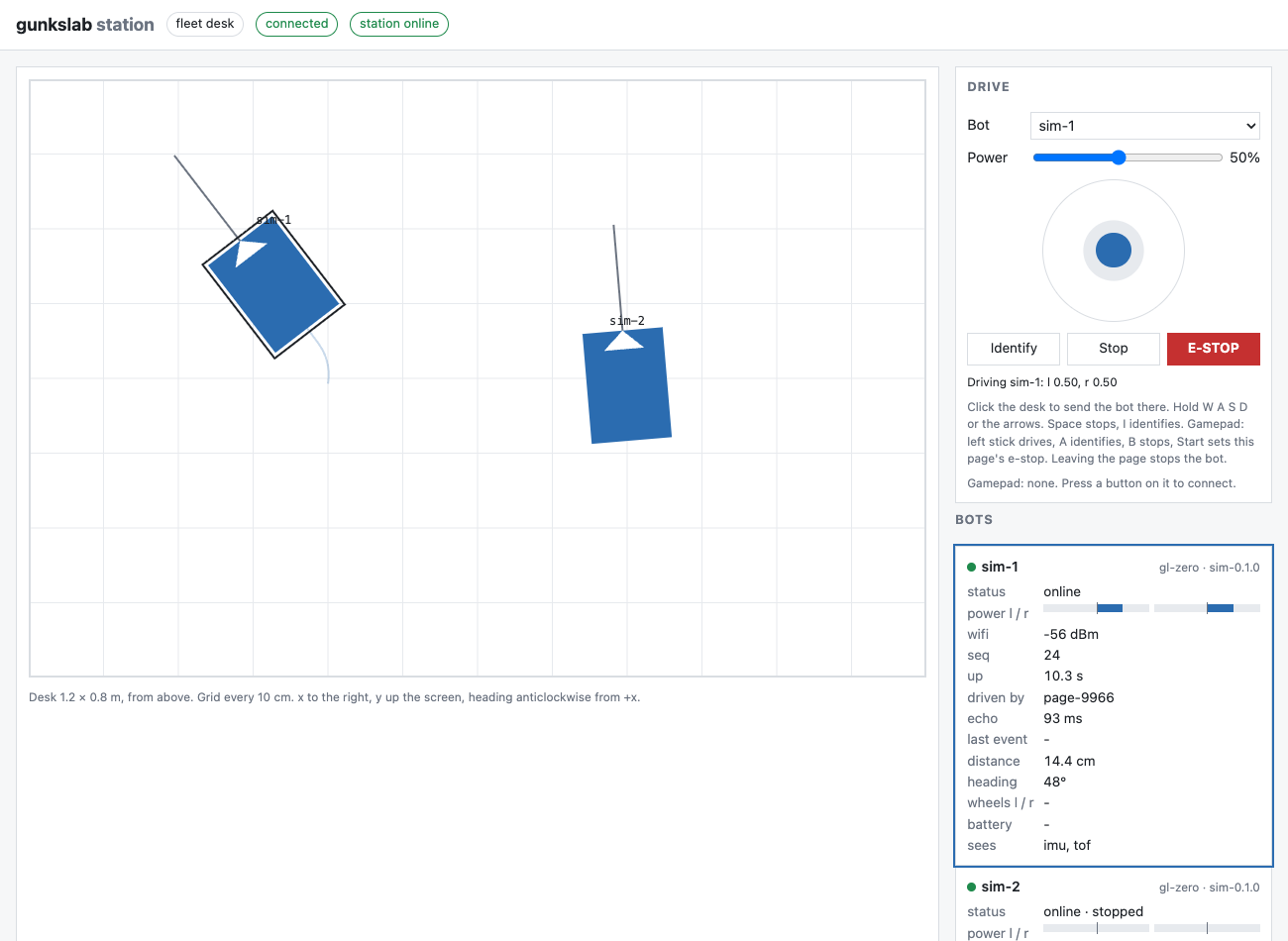
- Bot: which bot to drive. Only bots that are online are listed.
- Power: how strong your inputs are, 10% to 100%. It starts at 50%.
- The pad: a knob to drag with the mouse, or a finger on a touch screen.
- Identify, Stop, E-STOP.
- A status line saying what’s happening, or why you can’t drive.
2. Pick a bot
Choose sim-1 in Bot, or click its card. Its card gets a coloured outline, and on the desk it gets a black frame.
The status line says:
Ready to drive sim-1. You are page-58c0.
page-58c0 is this page’s name to the station, new every time the page loads.
3. Drive with the keys
Hold W. sim-1 drives forward, and the status line shows what the page is asking for:
Driving sim-1: l 0.50, r 0.50
Let go, and it stops. Unlike the terminal tool, the page knows when you let go of a key, so it’s hold-to-drive:
- W / S forward and back, A / D turn. Hold two at once to curve, like W and A.
- Space or Escape stops. I identifies.
- The arrow keys work too.
The card shows the station’s view: driven by page-58c0, and the echo.
Move the Power slider to 100% and hold W again: l 1.00, r 1.00. The station’s cap still applies on top. With
scripts/station up --cap 0.5, the bot never gets more than half, whatever the page asks for.
4. Drive with the pad
Drag the knob up and to the left, and hold it there. Up is forward, and sideways turns, so sim-1 curves left:
Driving sim-1: l 0.10, r 0.50
Let go of the mouse. The knob springs back and the bot stops. A small movement near the middle is ignored, so a shaky hand doesn’t creep the bot.
5. Drive with a gamepad
Plug in a gamepad (USB or Bluetooth) and press any button on it. Browsers only report a gamepad once it’s been touched.
Use Chrome, Brave, Edge or Safari. On macOS they read controllers through the system’s own game-controller
support, which knows Xbox and PlayStation controllers and gives the standard layout the page expects. Firefox reads
them its own way, and an Xbox controller over Bluetooth didn’t show up in it at all (tried 2026-10-02). The same
controller works in Brave. The panel’s Gamepad line changes from none to the controller’s name, as the browser
reports it.
- Left stick: drive. Push forward to go and sideways to turn. How far you push is how fast.
- A (bottom button): identify. B (right button): stop.
- Start: sets the e-stop. Clearing it takes a click on the page, on purpose, so a bumped controller can’t release it.
This was tested with a simulated gamepad. If a real one drives backwards or turns the wrong way, the stick’s axes differ from the standard layout. Say so in desk-issues, with the controller’s name.
6. Leaving the page stops the bot
Hold W, and while it’s driving, click into another window or switch browser tab. The bot stops.
A browser doesn’t report a key being let go while the page isn’t in front. Without this rule, a key it thinks is still held would keep the bot driving with nobody watching. So the page treats losing focus as letting go of everything.
Closing or reloading the page, or the computer dying, all look the same to the station: the page goes quiet. The station stops the bot within half a second and lets go of it after a second, as in tutorial 05. Switching the Bot list is the way to let go of a bot at once.
7. Two drivers
Open the page in a second browser window, side by side. Each window is its own client with its own name.
- Both pick
sim-1. Drive it from the first window, then try from the second. The second sayssim-1 is held by page-58c0: it has to let go first. - Pick
sim-2in the second window. Now you can drive both bots at once, one from each window. - Switch the first window to
sim-2while the second holds it, and the first is refused instead.
Switching the Bot list lets go of the bot you had, so it’s free for the other window.
You can mix in the terminal tool too: scripts/drive in a terminal is another client.
8. The e-stop from the page
Click E-STOP.
- Every bot stops, and the red banner says
E-STOP set by page-58c0. - The button changes to Clear e-stop, and the status line says
The e-stop is on. - Driving and identifying are refused until it’s cleared.
Click Clear e-stop. The bots stay where they are until someone drives them again.
Like the terminal tool, the page sets the e-stop on the fleet’s own topic, not through the station, so it works even when the station is down.
9. Tidy up
Close the browser windows, then:
scripts/viewer down
scripts/station down
scripts/sim down
scripts/broker down
How it’s built: the codebase.
Check yourself
- You hold W and A together. Which way does the bot go? (3. Drive with the keys)
- Power is at 100% and the station runs with
--cap 0.5. What does a bot get at full stick? (3) - Why does switching tabs stop the bot? (6. Leaving the page stops the bot)
- Why can the gamepad set the e-stop but not clear it? (5. Drive with a gamepad)
- Two windows, one bot. What does the second window see when it tries to drive? (7. Two drivers)
Stuck?
- Run
./gunkslab doctor. It checks the container runtime and the ports, and printsFIXwith what to do. - Troubleshooting has the common problems and their fixes.
- Known issues says what’s untested or doesn’t work yet.
- Still stuck? Open an issue in desk-issues with what you typed,
what you saw, and the output of
./gunkslab doctor.